Appearance
Davinci Resolve: Import a timeline with markers using two EDLs
DaVinci Resolve exports a standard timeline EDL (for the cut) and a separate marker-only EDL (for timeline markers). To rebuild the edit and bring over markers into After Effects, you’ll export and import both.
Step 1 — Export the timeline EDL (for the cut)
- In Resolve’s Media Pool, right-click your timeline (in the bin).
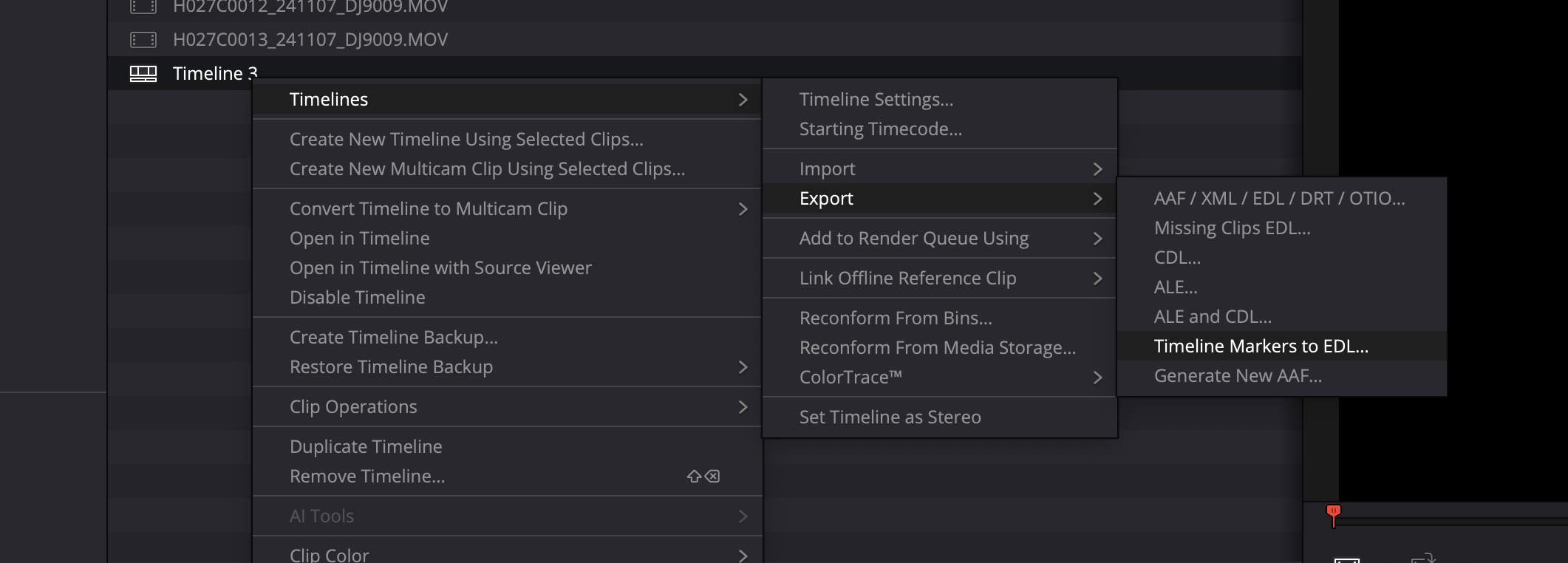
- Choose Timelines → Export → AAF / XML / EDL / DRT / OTIO…
- Export an EDL (the normal one containing the edit events).
Step 2 — Export the marker-only EDL
- Right-click the same timeline.
- Choose Timelines → Export → Timeline Markers to EDL…
- Save the marker-only EDL.
Step 3 — Import the timeline EDL into After Effects (build the comp)
- In After Effects, open EDL Importer.
- Load the timeline EDL you exported in Step 1.
- Set your Footage Location to Search, then run Search and relink any missing media.
- Open Settings → Sequence Build Options and choose the build mode you want (most users start with Single sequence).
- Click Send EDL to AE to build the composition.
Keep the resulting comp open/active — you’ll send markers into this comp in the next step.
Step 4 — Send the markers onto the comp you built
- In After Effects, activate the comp you created in Step 3.
- Back in EDL Importer, load the marker-only EDL from Step 2.
- Open Additional Actions (three-dot menu) and choose Send EDL Markers to Comp.
That’s it — markers are added at the timeline timecodes.
TIP
If no markers are added, the most common issue is a timecode mismatch between the comp start timecode and the EDL. EDL Importer may offer to adjust the comp start timecode automatically.
Marker settings
Marker behavior is controlled in Settings → Sequence Build Options → Import EDL Markers:
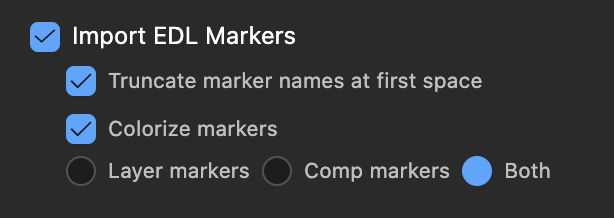
- Marker Destination: Add markers to Layer markers, Comp markers, or Both.
- Colorize markers: When enabled, Resolve/Avid marker colors are mapped to After Effects marker colors. When disabled, markers use After Effects’ default color.